Tools
Free Google Sheet to use the Google Indexing API to track index levels over time.
Google Indexing API
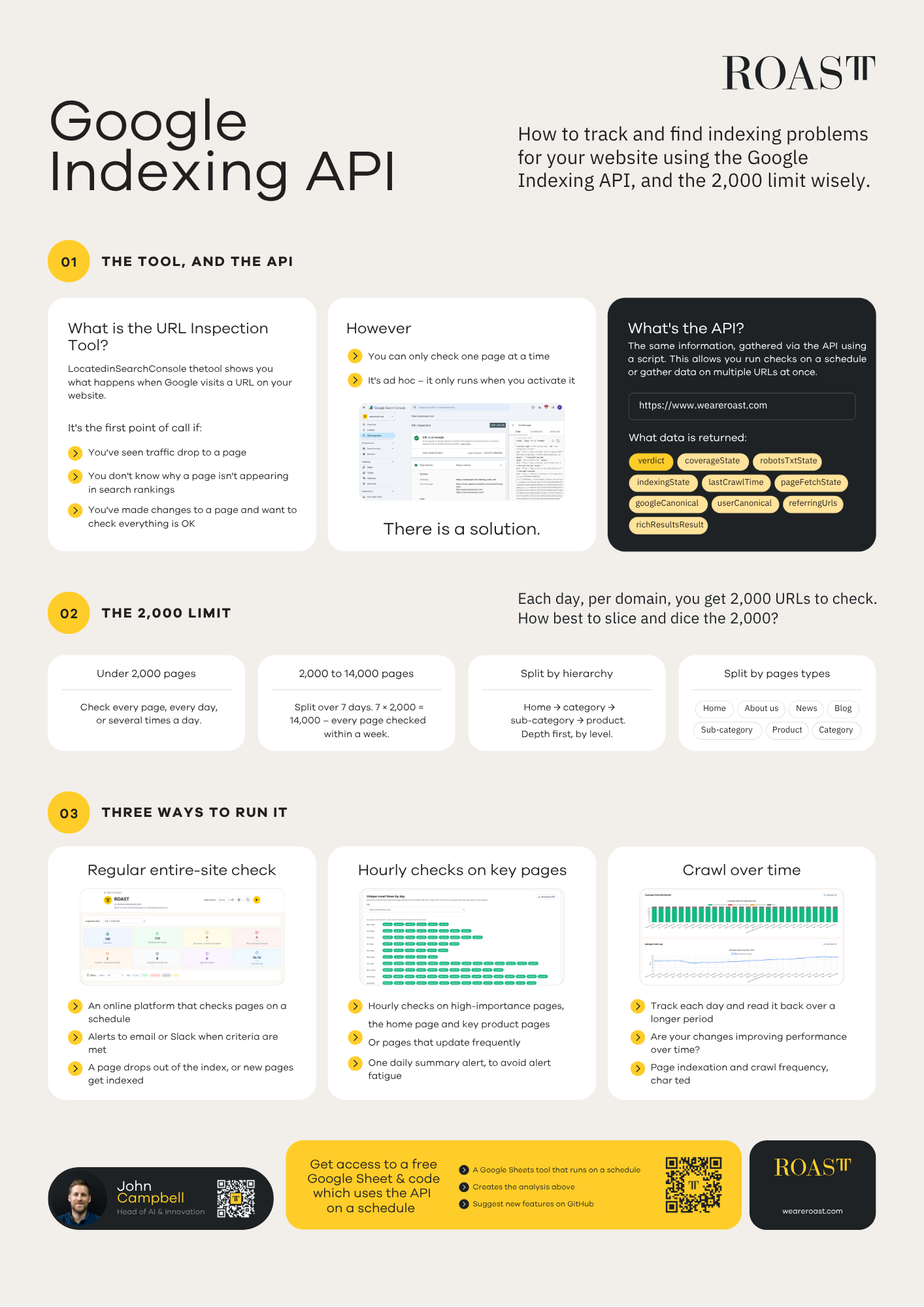
The URL Inspection Tool in Search Console is most people’s first port of call when a page’s performance doesn’t add up. Traffic has dropped, rankings won’t budge, or you’ve just made changes and want to confirm Google sees them. The problem is it only checks one page at a time, and only when you remember to run it. For anything beyond a handful of URLs, or anything you want to monitor rather than react to, it isn’t built for the job.
The Google Indexing API returns the same data, verdict, coverage state, indexing state, canonical URLs, crawl times but via a script rather than a manual lookup. That means you can check multiple URLs at once, run checks on a schedule, and build a picture over time instead of a single snapshot. The trade-off is a hard limit of 2,000 URL checks per domain, per day, so how you spend that allowance matters as much as having it.

As seen at Search Central Live Deep Dive Europe 2026, ROAST have built a Google Indexing API Tool in Google sheets to help you use the limit of 2,000 limit with intent. This is how we’d recommend running it:
Decide how to slice your 2,000:
- Under 2,000 pages: check every page daily, or multiple times a day if you want tighter monitoring.
- 2,000–14,000 pages: split the site across seven days (7 × 2,000 = 14,000), so every page is checked at least once a week.
- By hierarchy: work depth-first: home → category → sub-category → product.
- By page type: group and prioritise by template: home, category, sub-category, product, blog, news, about.
Choose how to run it:
-
- Regular entire-site check: Schedule checks across the whole site on a set cadence, with alerts to email or Slack when it matters: a page drops out of the index, or a new one gets picked up.
- Hourly checks on key pages: Run tighter, more frequent monitoring on your highest-priority URLs, the homepage, key product pages, anything that updates often and roll findings into a single daily summary so you’re not fielding alerts all day.
- Crawl over time: Track indexation and crawl frequency daily and read it back over weeks or months, to see whether the changes you’ve made are actually improving performance, rather than assuming.
What data is returned?
The same information, gathered via the API using a script. This allows you run checks on a schedule or gather data on multiple URLs at once.
- Verdict
- coverageState
- robotsTxtState
- IndexingState
- lastCrawlTime
- pageFetchState
- googleCanonical
- userCanonical
- referringUrls
- richResultsResult
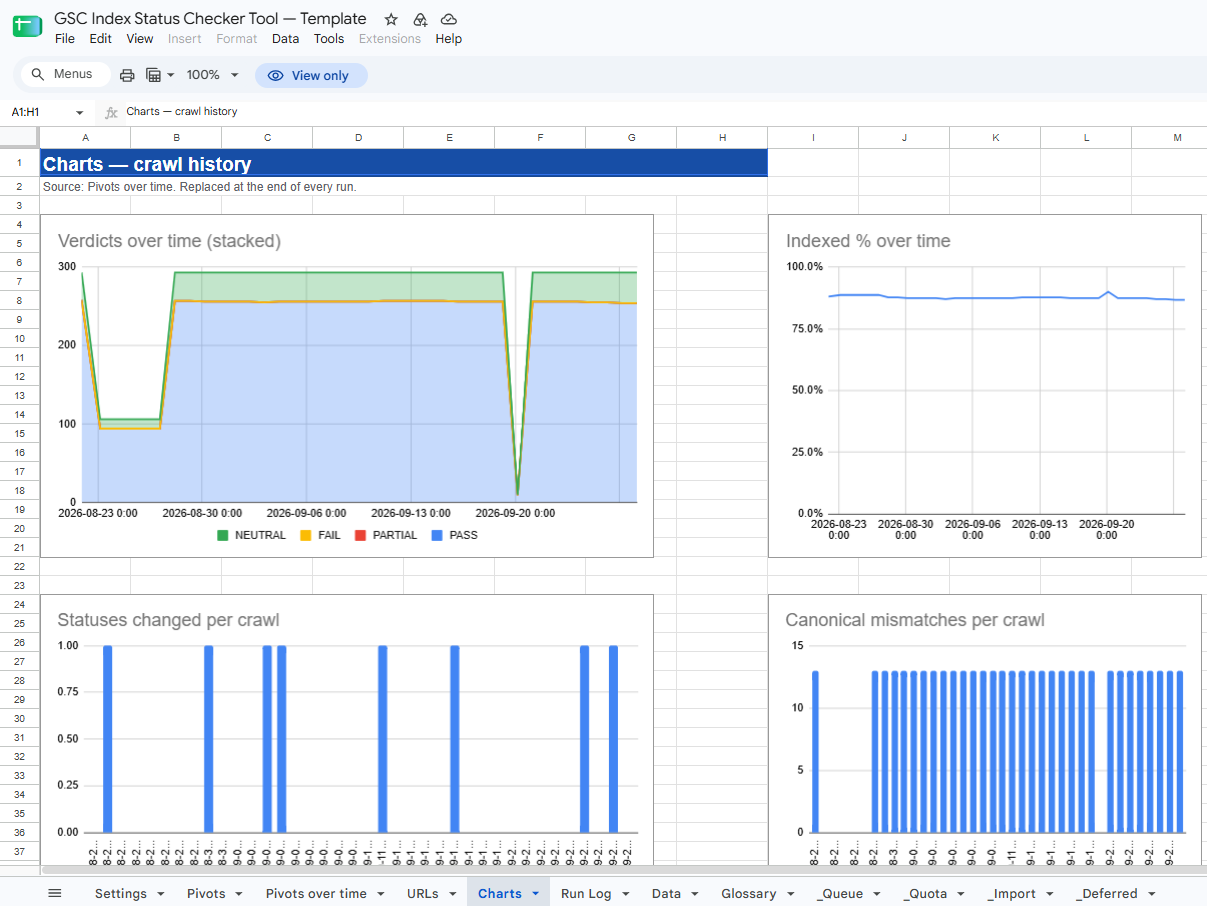
Above : Chart over time will show when pages drop in or out of the index or the occurrence of errors.
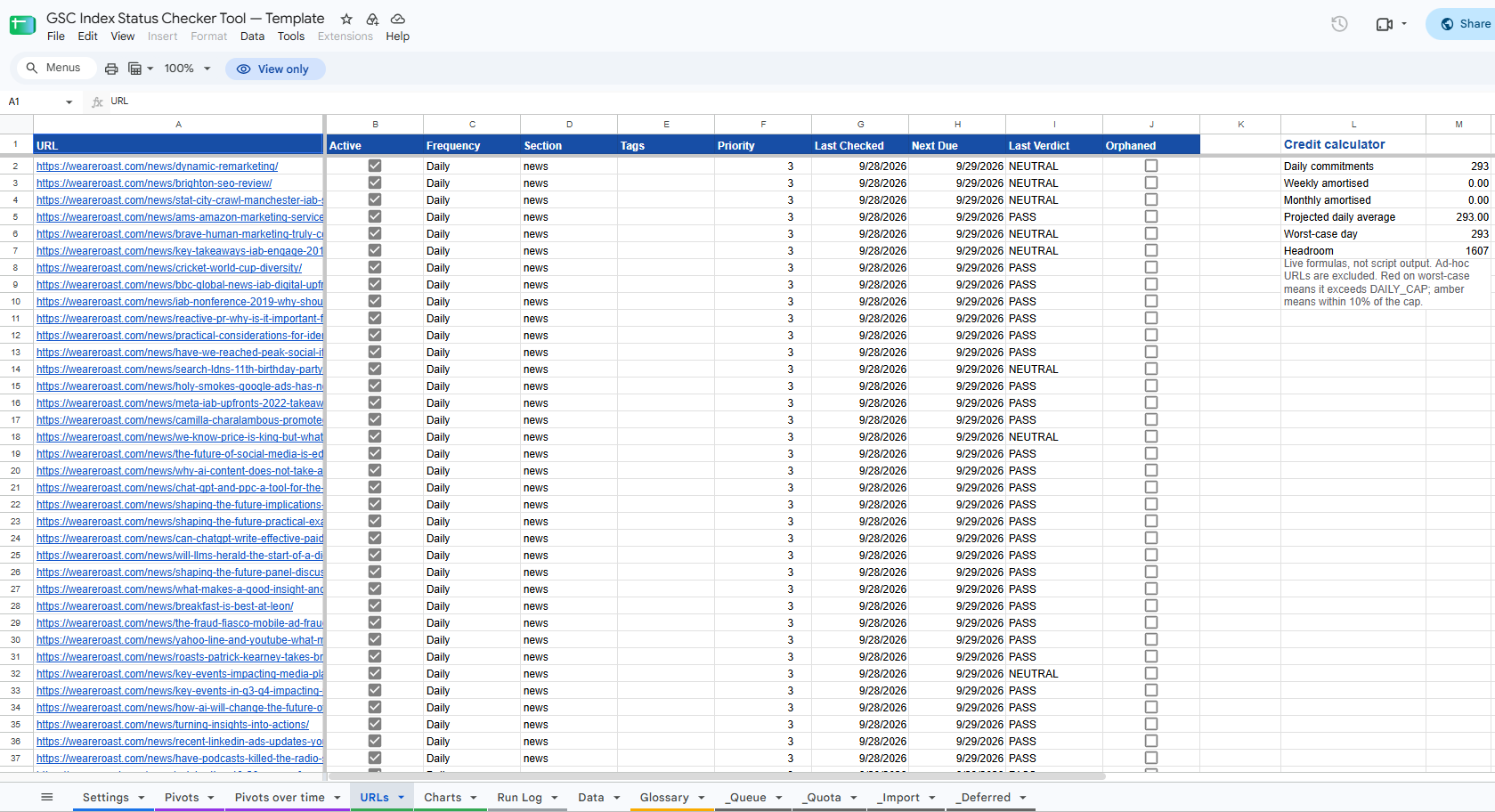
Below: data per URL per day is reported on
What you need
- A Google account that is a user on the Search Console property
- Google Workspace is better than a personal Gmail account (more on that below)
- About 15 minutes for first-time setup
- A Cloud project with the Search Console API enabled (this is the step most people miss)
1. Copy the template
Do not install anything from GitHub. Open the template and make a copy:
That creates a private Sheet in your Drive with the script already attached. Use one copy per Search Console property.
Refresh the sheet. You should see an Index Checker menu to the right of Help.
2. Link a Google Cloud project
The script calls Search Console over HTTP. Apps Script’s Default Cloud project is hidden, so you cannot enable APIs on it. Until you attach a real Cloud project, Setup will return 403 even if you have Search Console access.
- Open Google Cloud Console with the same account you will use in the sheet.
- Create a project (for example
gsc-index-checker), or pick one you already use. - Copy the Project number (digits on the project home page — not the project ID).
- Enable Google Search Console API:
Enable Search Console API - APIs & Services → OAuth consent screen
- Workspace: Internal
- Gmail: External, leave it on Testing, add your email as a test user
- In the Sheet: Extensions → Apps Script → Project Settings (gear) → Google Cloud Platform Project → Change project → paste the project number.
Then go back to the Sheet and refresh.
3. Run Setup
Index Checker → Setup.
- Click Authorise and list properties and accept the permission prompt.
- Pick the Search Console property (
sc-domain:example.comor a URL-prefix property). - Set the scheduled hour. That hour uses the Apps Script project timezone (Project Settings), not Pacific time. Quota still resets at Pacific midnight.
- Import a sitemap, or skip and paste URLs later.
- Finish so the daily trigger is created. If you only import a sitemap and close the dialog, use Index Checker → Install / reset daily trigger afterwards.
The script will warn you if the account looks like a consumer Gmail account. That is about Apps Script runtime, not Search Console.
4. Load URLs
Two ways in:
Import from Sitemap (in Setup, or Index Checker → Import from Sitemap)
- From Search Console (sitemaps already submitted for the property)
- Or paste a sitemap URL (staging / unsubmitted files,
.xmlor.xml.gz)
You can filter with include/exclude regex, edit the auto-derived Section (first path segment), and set default Frequency / Tags / Active.
Reconciliation:
- New — added to the URLs tab
- Existing — left as they are
- Orphaned — still in the sheet, flagged
Orphaned. Never deleted. A URL dropping out of the sitemap is often the most useful signal.
Priority is seeded from <lastmod> if present: ≤7 days → 1, ≤30 days → 2, older or missing → 3.
Or paste into the URLs tab
The credit calculator on the right is live formulas, not script output. It shows daily commitments, a worst-case day (every Daily + Weekly + Monthly landing together), and headroom under DAILY_CAP (default 1,900). Red on worst-case means you are over the cap.
5. Confirm the daily trigger
The schedule does not show on the spreadsheet. Open Extensions → Apps Script → Triggers (clock icon).
You want onScheduledRun, time-driven, once a day, at RUN_HOUR.
If it is missing: Index Checker → Install / reset daily trigger. Google fires sometime during that hour, not at 03:00:00 exactly.
That job builds a queue of Active URLs whose Next Due is today or earlier, inspects them, and writes a row to Data every time — including when the status did not change, so the trend has no gaps.
6. Run Now vs Run Ad-hoc
Run Now is tonight’s scheduled job, started immediately. Only due URLs. Counts as scheduled quota.
Run Ad-hoc is “check these URLs now.” Paste a list, or select rows on the URLs tab. Frequency and Next Due are ignored. Counts as ad-hoc quota.
If an ad-hoc request would spend tonight’s reserved budget, you get three choices: trim to what fits, borrow from tonight (second confirmation), or queue for tomorrow.
How long runs work
Google kills an Apps Script execution at 6 minutes. A full day’s cap cannot finish in one go.
The sheet writes due URLs to a hidden queue, inspects them in batches of 10, and stops at 4.5 minutes on purpose. A continuation trigger resumes a minute later from the same cursor. You may see a toast that it paused. That is expected.
Hard limits (check current Google docs; they change):
On a personal Gmail account, 90 minutes of continuations is the real ceiling, not 2,000 API calls. Use Weekly / Monthly on the long tail. Workspace is comfortable for a full daily cap.
A 03:00 London run still draws on the previous Pacific day’s quota. The hidden _Quota tab is keyed on Pacific date for that reason.
What to look at after the first run
- Data — one row per inspection
- URLs — Last Checked, Next Due, Last Verdict
- Run Log — duration, successes, failures, quota remaining, whether it borrowed from the scheduled reservation
- Dashboard — indexed share, changes today, quota used, crawl recency
- Pivots — coverage by section, verdict trend, canonical mismatches
- Glossary — what PASS / NEUTRAL / “Crawled – currently not indexed” actually mean
A canonical mismatch (Google chose a different URL than you declared) is usually the most useful diagnostic in the export.
Do not report Mobile Verdict to clients. The field may still come back; the Mobile Usability report was retired in 2023.
If something fails
“Cannot list Search Console properties (403)”
The Cloud project is still Default, or Search Console API is not enabled. Repeat step 2 and re-authorise.
“Run Setup before inspecting URLs”
Finish Setup, or confirm PROPERTY_URL is set on the Settings tab, then try Run Now again.
No trigger in Apps Script
It is not created by opening the sheet. Use Install / reset daily trigger.
URLs tab looks empty after import
Jump to the bottom of the tab (Ctrl+End). Older copies wrote the list below a block of empty checkbox rows. Refresh after the latest template; the list should sit from row 2.
Auth / “unverified app”
On a Gmail OAuth screen set to Testing, only listed test users can authorise. Add yourself.
A sensible first configuration
For a few hundred URLs: Daily on money pages, Weekly on the rest, DAILY_CAP at 1,900, RUN_HOUR overnight.
For thousands of URLs: you cannot inspect the whole site every day. Prioritise, use Weekly / Monthly, and treat the 2,000/day cap as a sampling budget.
Leave DATA_RETENTION_DAYS at 180. At ~2,000 rows/day the spreadsheet’s 10 million cell limit arrives in roughly nine months without a purge.
Get the raw code on GitHub
You can also see the raw code for free over at https://github.com/Roast-Labs/Search-Console-URL-Inspection-API-Google-Sheet
From there you could extend or use the underlying code to make this into a web app rather than using Google Sheets and App Scripts.
Have a question or need some help?
Reach out to John on LinkedIn.
See the poster from John’s poster session below (Click to enlarge)